DB table data source
Path: Widget Gallery> Basic> Table> DB table data source
The "DB table data source" is a widget that collects data from an SQL database through a SQL query to fill a table.
To configure a table with a "DB table data source":
- Put a "DB table data source" on the page and configure it with the appropriate SQL query
- Put a "Table group" on the page and select the defined "DB table data source"

DB Query
After opening the DB Query dialog, you can enter your SQL query in the left panel of the dialog.
On the toolbar of the dialog, there is a button that starts a wizard that tries to find the available columns that will be generated by the entered query. When columns are found, the right panel is filled automatically, otherwise, you need to fill them manually.
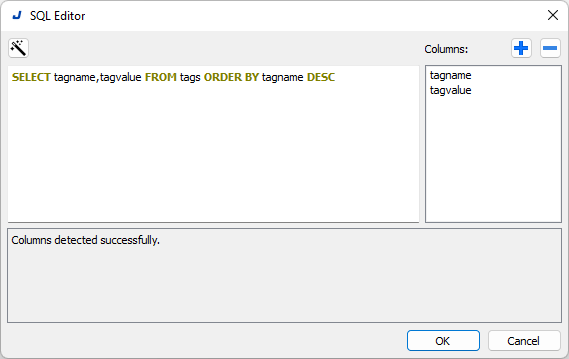
Examples:
  SELECT tagname,tagvalue FROM tags ORDER BY tagname DESC
  SELECT tagname,tagvalue FROM tags WHERE tagname="Tag09" OR tagname="Tag10" ORDER BY tagname DESC
Placeholder
The DB Query accepts placeholders in the form $(tag name). Those placeholders will be substituted with the value contained inside the tags
For example, if we have a string tag called FILTER (long enough to contain the text we will write), we can configure a filter that can be activated by writing inside the FILTER tag.
The QB Query:
SELECT tagname, tagvalue FROM tags $(FILTER) ORDER BY tagname DESC
Writing an empty string inside the FILTER tag:
""
the query will be without filter
SELECT tagname, tagvalue FROM tags ORDER BY tagname DESC
Writing the SQL filter string inside the FILTER tag:
WHERE tagname="Tag09" OR tagname="Tag10"
the query will be with the filter
SELECT tagname, tagvalue FROM tags WHERE tagname="Tag09" OR tagname="Tag10" ORDER BY tagname DESC
For the other data source parameters see the "Configuring the data source"
RefreshDBTable
There is an Action, available inside the "Database actions" folder, that can be used to executes the SQL query of the "DB table data source" widget to update its data.